
More actions
Added exefile trick |
m →Setting a sub channel push-to-talk button: "ready rooms" |
||
| Line 131: | Line 131: | ||
#Click the word ''Unassigned'' and select ''Whisper/Shout ''from the drop-down list.<br> | #Click the word ''Unassigned'' and select ''Whisper/Shout ''from the drop-down list.<br> | ||
#Click the word ''Empty'' next to it, which should cause a [...] button to appear next to that - click that [...] button to open a new Whisper Target window.<br>[[Image:Shortcut 1.png]]<br><br> | #Click the word ''Empty'' next to it, which should cause a [...] button to appear next to that - click that [...] button to open a new Whisper Target window.<br>[[Image:Shortcut 1.png]]<br><br> | ||
#Make that new Whisper Target window look like this (i.e. Shout to Channel box ticked at the top, and Current channel highlighted), and then click OK. The ''Shout to Linked channels'' should be <u>clear</u>. Check ''Shout to subchannels'' if you want to be able to talk to the campus sleeper rooms.<br>[[Image:Whisper current target.png]]<br><br> | #Make that new Whisper Target window look like this (i.e. Shout to Channel box ticked at the top, and Current channel highlighted), and then click OK. The ''Shout to Linked channels'' should be <u>clear</u>. Check ''Shout to subchannels'' if you want to be able to talk to the campus sleeper rooms (sometimes listed as "Ready Room").<br>[[Image:Whisper current target.png]]<br><br> | ||
#Finally click the Shortcut column of your new shortcut and press the key you wish to use. | #Finally click the Shortcut column of your new shortcut and press the key you wish to use. | ||
#You now have a Command chat key set up for fleet channels!<br> | #You now have a Command chat key set up for fleet channels!<br> | ||
Revision as of 10:29, 24 May 2014
Why is it useful?
Mumble is mostly used in two situations: PvP and Classes. In PvP it is very useful because, for example, it is faster to call out a primary target than to type it, especially with PvP related lag. In classes it is great as well because we do not want our poor instructors getting Carpal Tunnel Syndrome from typing everything. In effect, it is just a lot easier and faster than typing.
Mumble Quick Connect Guide
- Download Mumble from http://mumble.sourceforge.net/ (preferred) or http://www.mumble.com/. Linux users (i.e. Ubuntu and Kubuntu) may be able to find it in their repositories
- Install and set it up (create a certificate from within Mumble, etc.) [note: install 'Mumble' not 'Mumble11x']
- Start the client and click Server > Connect > Add New...
- Servername: EVE University
- Address: mumble.eveuniversity.org
- Port: 64738 (default)
- Username: <Your forum username, i.e: your character name>
- Connect
- When prompted for your password, use your forum password!
- There is no six! (actually there is, it might take a while (hours, a day max) till mumble recognizes your newly created forum account)
- You should automatically be dropped in the "Public Lounge" channel.
- Use the Comm Check channel to check your microphone
- Restart EVE client if you want the overlay to work
You can also connect to the server using the official Mumble app from the iTunes app store. If you come across an app called iMumble Pro, do not use it - it spams the channel with adverts constantly.
PUBLIC Mumble Quick Connect Guide
This server is for public events and classes. You don't need to register on the forum to join it but only certain people have rights on the server. If you join it, you won't be able to speak until a Manager/Director gives you Voice.
- Download Mumble from http://mumble.sourceforge.net/ (preferred) or http://www.mumble.com/. Linux users (i.e. Ubuntu and Kubuntu) may be able to find it in their repositories
- Install and set it up (create a certificate from within Mumble, etc.) [note: install 'Mumble' not 'Mumble11x']
- Start Mumble and click Server > Connect > Add New...
- Servername: EVE University
- Address: mumble.eveuniversity.org
- Port: 64739 (One port higher than the default)
- Username: <Your In-game Charactername>
- Connect
- You will be dropped into the basic server channel; if you are attending a class or other event, try joining the channel with the lecturer/leader in it
- Restart EVE client if you want the overlay to work
You can also connect to the server using the official Mumble app from the iTunes app store. If you come across an app called iMumble Pro, do not use it - it spams the channel with adverts constantly.
Setting up Mumble
Audio Tuning Wizard
When you run Mumble the first time, an Audio Tuning Wizard is presented to you. If you skip or miss it on the first run you can retake the wizard by clicking Configure > Audio Wizard. It is recommended you go through it carefully, since setting up Mumble correctly will make your and everyone else's life much easier (going through the Audio Tuning Wizard properly will also normalise everyone's voices, such that everyone will sound the same volume regardless of how they have their microphone set up). However there are two things I would like to highlight:
Push-to-talk

When you reach a screen that looks like the one above select the top radio button, click on the box on the same line and press the key you you want to use as the push-to-talk key.This is your normal push-to-talk key; for certain Fleet roles you may need more than one (see the comments in the Fleet channels), but for general E-UNI activity one is sufficient.
Text-to-speech

When you reach a screen that looks like the one above I recommend you disable the text to speech notifications.
Connecting to the EVE University Server
Once Mumble is all set up and you have run through the Audio Tuning Wizard, you will want to connect to the EVE University server.
- Go to Server in the toolbar --> Connect.
- Click the Add New... button in the bottom right.
- Put anything you like in the Label box ("EVE University" seems sensible), the Address box needs to be mumble.eveuniversity.org and the Port needs to be left as default (64738).
- The Username box needs to be your exact E-UNI forum username, which also happens to be your exact character name.
- Click the Connect button.
- The server will reject your connection, and prompt you with a Wrong Password box. You need to use your forum password (i.e. the same password you chose when you registered for our forums) in the box, then click OK.
- You are now connected to the Mumble server, which will have moved you into the Public Lounge channel.
Connecting to the Public EVE University Server
Most of the classes are held on the Public Mumble server in order to provide knowledge to the whole EVE community. The procedures for connecting to the public server are exactly the same as the procedures for connecting to the normal EVE Uni server (connect to server mumble.eveuniversity.org), however you must input 64739 as your port instead of 64738. You will not be prompted for a password.
Microphone Check
To check your microphone is working and to hear what you sound like to other people, you can use the Comm Check channel at the top of the channel list.
- Right-click the Comm Check channel and select Join to switch to it.
- Wait for your Echo to also join the channel.
- Depress your push-to-talk key.
- Talk.
- Release your push-to-talk key.
- 2 seconds after you release your PTT key, your Echo will repeat what you said back to you.
Notifications
In the Configure --> Settings screen you can find Advanced settings checkbox in the bottom left corner. With it checked you can access the Messages settings. From there you can disable popup and sound notifications about events you don't care about. By default Mumble makes a loud PING and gives you a notification popup for almost any event on the server - this gets annoying pretty fast.
Mac version: From the Mumble --> Preferences window (make sure the 'Advanced' checkbox in the upper right is checked), select the 'Messages' tab. The only way to eliminate audio notifications is to uncheck items in the 'Soundfile' column.
Other Interesting Features
- Mouse-over anyone's name and their ingame portrait will pop up.
- Right-click on a channel and select Join Channel to move to that channel (double-clicking sometimes produces strange behaviour with nested channels).
- If the name of the channel that you are in is italicized, then your push-to-talk button, in addition to talking to the current channel, will also talk to everybody in every other channel that is also italicized. Italicized names denote linked channels (you can only see this if you are currently in a linked channel).
- Click the small yellow |c| button on any channel (or any person) to see comments on that channel (or person). The |c| will go white once you've read it (and go yellow again if it changes). You can set your own comment by right-clicking on your own name.
- You will automatically be moved to the AFK & Idle channel if Mumble detects no activity on your computer for at least 4 hours. Everybody is automatically muted in that channel, so you can also move yourself there if you desire peace and quiet
- You can create your own channels for EVE purposes (in the On-Demand Channels section) or for any non-EVE gaming purposes (in the Non-EVE Gaming section) by right-clicking on the relevant section and choosing Add. These are temporary channels, you will have admin powers and once the last person leaves the channel will disappear.
- The overview will only appear if somebody speaks - so say hello if you cannot see your overview.
Chat Policies
Please remember that our Public channel policies apply in the Uni Mumble. Moderation can include muting and/or banning. Note that this can severely affect your participation in fleets, classes, as well as compliance to allow you to undock during wartime.
Setting a sub channel push-to-talk button
Some of our mumble rooms, most notably the fleet and campus channels have sub channels like command, logistics or ewar. The purpose of these sub channels is to give the group within the option to talk to each other without the rest of the fleet being able to hear it. For example the commander of the logistics group can now talk to only the Logistic pilots without confusing everyone else.
You don't need to do anything to just listen to a sub channel but joining it. Your regular push to talk button will still let you talk to the whole fleet/campus you are in, the sub channels are "linked" to the whole channel. To be able to talk to the sub channel you are in right now, you need to set a second PTT key. To set that up, go to Configure -> Settings -> Shortcuts, which will pop up a window that looks like this:

You should already see your existing push-to-talk key set up. It's a good idea to check the Suppress box on any shortcuts, as that will prevent other applications from recognising your key and performing unforseen tasks you had not expected (e.g. warp scrambling stargates).
- Click the Add button in the bottom left, which will bring up a new Unassigned shortcut in the window.
- Click the word Unassigned and select Whisper/Shout from the drop-down list.
- Click the word Empty next to it, which should cause a [...] button to appear next to that - click that [...] button to open a new Whisper Target window.
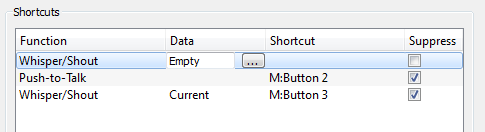
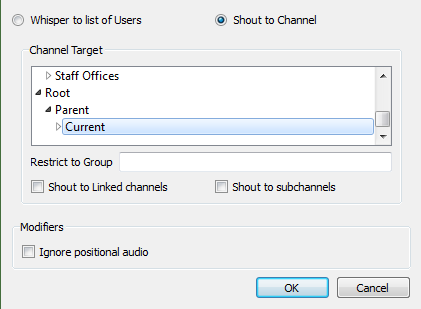
- Make that new Whisper Target window look like this (i.e. Shout to Channel box ticked at the top, and Current channel highlighted), and then click OK. The Shout to Linked channels should be clear. Check Shout to subchannels if you want to be able to talk to the campus sleeper rooms (sometimes listed as "Ready Room").
- Finally click the Shortcut column of your new shortcut and press the key you wish to use.
- You now have a Command chat key set up for fleet channels!


Note that it will only talk to Command chat if you yourself are also in Command. If you are in the general fleet channel it will talk to the general fleet ONLY, i.e. not Command. You can also use this key in any channels that are linked together (e.g. Public Lounge and Combat Lounge) - it will only talk to the current channel, and not the linked channels. Speaking of which...
Combat and Public Lounge
These two channels in Mumble are linked. The combat lounge is restricted to those people actually in EVE University; however the public lounge is open to anyone with an account on the EVE University forums - i.e. any EVE Online player in the whole galaxy can join our Mumble server.
This is important when it comes to communicating information about university fleets or war information. You normal push-to-talk will of course talk to both channels, and you should use that to chat in these two channels. However, the Combat Lounge section serves an important purpose, and that is announcing upcoming fleets (or other confidential fleet/war information).
Whilst in the Combat Lounge you can use your Command chat push-to-talk key to talk to only the Combat Lounge in order to announce upcoming fleets, or asking confidential questions concerning fleets or current wars. This should not be used for general chatting, and should only be used for fleet announcements or confidential war/fleet questions. Use of the command chat key in this case should be kept short and clear, as those in the Public Lounge are liable to talk over you.
Tokens
Another option with mumble is to set up so called tokens to be able to only talk to specific people. You find a detailed description with the example for ewar pilots here here (thanks to Remric for that).
You can also set up keybinds to talk to groups of people, or to single specific people regardless of what channel they are in (we call this one a 'push-to-stalk' key).
Setup a Server Access Token
- 1. In Mumble go to Server / Access Tokens
- 2. Name the new token Ewar, logi, bombers, triage, and share this with your group.
File:MumbleServerAccessToken 1.jpg

- 3. Go to Configure / Settings / Shortcuts (where the Push to Talk PTT key is setup)
- 4. Select Whisper/Shout under Function
- 5. Choose a shortcut key that is different from your other Mumble shortcut keys
- 6. Click "..." under Data
- 7. Select Shout to Channel radio button
- 8. Select Parent for Channel Target
- 9. Restrict to group use hash '#' + Server Access Token (above) in this example #logi
- 10. Check box Shout to Linked Channels

Overlay

Mumble provides a very handy and customizable overlay. To configure it go to Configure --> Settings --> Overlay option.
Mumble, being the awesome program that it is, shows in this window an example of what the overlay will look like on your current desktop, as well as instructions on how to alter it. One position that works very well is just to the right of the current location name, like the screenshot on the right. You could even put it above the current location, but then - for me at least - it's too small to see easily.
The default setting is for the Overlay to display the name of everyone currently in the channel. As you can imagine, this gets unwieldy very quickly. To change this, right-click on the small example overlay in the window, choose Filter >, and tick Only talking. Also untick Always show yourself, otherwise your name will constantly be displayed on the overlay.
The Edit... option on the right-click menu produces a detailed configuration screen where you can change pretty much anything you like about the overlay: colours, sizes, backgrounds, avatars, etc.
If your overlay is not showing up, it might be because you started Mumble whilst EVE was already running. If necessary simply restart EVE.

Overlay on Linux
To actually display the overlay over EVE in Linux after you've enabled it in Mumble's settings you need to have Mumble launched first and then run mumble-overlay in front of the wine command that you use to launch EVE. For example:
mumble-overlay wine explorer /desktop=EVE,1600x1200 "C:\Program Files\CCP\EVE\eve.exe"
If you use a WINEPREFIX, then you would insert it after the WINEPREFIX variable like so:
WINEPREFIX=/home/username/bin/wine/wine-eve/ mumble-overlay wine explorer /desktop=EVE,3200x1180 "C:\Program Files\CCP\EVE\eve.exe"
Overlay on Mac
The overlay in the 1.2.3a stable release works with Mac OS X 10.7 (Lion), but not with Mac OS X 10.6 (Snow Leopard). You'll need to install the developer snapshot from http://mumble.sourceforge.net/ to get a working overlay in Snow Leopard.[1]
In all cases, it is essential that Mumble be running before the EVE client is started for the overlay to work in EVE.
Version 1.2.3a
Installing the Overlay
- After downloading and mounting the Mumble install dmg, drag and drop the Mumble application into the folder of your choice.
- Launch Mumble.
- Click Mumble -> Preferences… and go to the Overlay section in the Preferences window that opens.
- Click the [Install Mumble Overlay] button. If prompted, authenticate using an account with Admin rights.
- The window will update once the overlay is installed.
- Tick the [Enable Overlay] checkbox if it's not already ticked.
- Click [OK] to close the Preferences window.
Congratulations, you now have a working overlay! Well, kind of. You'll probably want to make some configuration changes.
Configuring Overlay
- With the Mumble application still running, launch EVE.
- If you run EVE in full-screen mode, press the [Command]+[Enter] keys to put it into windowed mode.
- Switch to Mumble and click Mumble -> Preferences… and go back to the Overlay section.
- In the Layout tab in the bottom half of the window, use the screen preview to:
- Move the red dot to anchor the overlay where you want it.
- Hover the mouse over the overlay and scroll in/out to increase/decrease the size of the overlay.
- Right-click the overlay and in the Filter menu check [Only Talking] (or [Talking and recently active]) and uncheck [Always show yourself].
- Adjust other settings as desired. Right-click the overly and select Edit to customise the look of the overlay (e.g., background and font colour for the talk/shout/whisper).
- Click Ok to save the changes.
- With Mumble running in the background, you can now switch back to EVE. Press [Command]+[Enter] if you want to put EVE in full-screen mode.
Your overlay is now setup and you are ready to go!
Again - be sure to start Mumble first before EVE from here on out.
"In the EVE settings make sure that you have checked "Use Multithreaded OpenGL"'. Without it the overlay will not work in EVE and will crash the client on startup. (credit: Hank Magnusson)
Troubleshooting
The Mumble FAQ on the Mumble homepage - http://mumble.sourceforge.net/FAQ - has a lot of useful information, and also has a section on Common Problems and Resolutions which may be helpful.
I can login to other servers but not the UNI server!
The Mumble download comes with a "backwards-compatible" version. That program won't work with our server. Use the up-to-date version. Also, if you change your forum password, you have to go to http://forum.eveuniversity.org/update to fix that.
I can't enter a channel I should be able to!
For example, you are in E-UNI but you are unable to access the fleet channels.
Using the in-game browser, click this link: http://forum.eveuniversity.org/update. Then disconnect from Mumble and reconnect. You should now be able to access the relevant channels.
Sometimes it can take up to a few hours before the update goes trough, so have patience.
"Server connection failed: The remote host closed the connection."
Third-party certificates (for example the free one from https://www.startssl.com that Mumble suggests using) do not work with the EVE University Mumble server. Create a new certificate from within Mumble and you should be properly prompted for your password when initially connecting.
I continue getting the message "Server connection failed: The remote host closed the connection."
Click on the Mumble menu: Configure/Settings and a popup window appears. Click on Network and be sure to UNcheck the [ ] Use Quality of Service (QoS) box. Now click Apply at the bottom right then click OK. The window will close and you will be connected to your server.
A referral was returned from the server.
"A referral was returned from the server." error while starting Mumble on Windows Check your system time. Windows certificate check will fail if your clock is some years ahead/behind.
For Windows XP: Install the latest Root Certificate update through Windows Update (it's an optional update) to fix this problem.
For Windows Vista/7: Right-click the Mumble executable, select "Properties", select the "Digital Signature" tab, click "Details" and click "Install certificate".
Installing https://www.startssl.com/certs/ca-bundle.crt to the "Trusted Root Certification Authorities" cert store should also work.
If you compiled Mumble yourself either sign the binary or disable signing.
If you are on windows 7 and this doesn't help you, try this out. Press Start, type MMC and press enter go to File and select Add/Remove Snap-ins in available snap-ins select Certificates and press ADD. you get three options, I personally went with "My User Account"
with that done exit the Snap in management window and double click on the Certificate Icon, then double click on the "Trusted Root Certification Authorities" Right click on the Certificate icon that appears and highlight "all tasks" then click on the Import button.
The import wizard will then ask for the filename of the certificate you want imported. First Save As: https://www.startssl.com/certs/ca-bundle.cr in whatever folder you want then link it to the import tool. follow the wizard's instructions and "Voila" you now should be able to use Mumble
Overlay not showing in Windows 8/Windows Server 2012.
There seems to be an issue with how Mumble injects the overlay in Windows 8/Windows Server 2012. To get the Overlay to work properly just add -nod3d9ex to your Mumble shortcut. ** This workaround seems to be working with Mumble 1.2.4-beta1-4-g90599b8

Overlay not showing when you run Eve via exefile.exe.
If you don't use launcher, but instead run eve via exefile.exe shortcut, Mumble overlay may still not work (launcher setting does not impact direct exefile.exe startup). The solution is to add "/triPlatform=dx9 /noconsole" parameters into your exefile.exe shortcut (just at the end of line in the Target field - after \path\exefile.exe).
I can't see the overlay after enabling "Use Multithreaded OpenGL" option in-game and editing shortcut on Win8 (if applicable).
Rubicon added the ability for Eve Online to use DirectX 11 rather than DirectX 9 to run the game. Due to issues with Mumble, the overlay will not work with DX11 enabled. You need to enable DirectX 9. The way to do this is to go into your launcher settings (the cog on the upper right corner of you launcher window). Once you do that, proceed to the DirectX tab and you will see a drop-down box allowing you to change the DirectX version Eve Online loads with. Make sure you selected DirectX 9.
Now, if you have Mumble active and launch the game client, you should be able to see the overlay in-game.

Fallback to EVE Voice, should Mumble go down
Not required, just recommended.
Sometimes Mumble goes down, and sometimes the Uni is at war (when anyone undocked should be capable of at least listening in Mumble), or you might be in the middle of a fleet op in null-sec. To prepare for the eventuality that they happen at once, it would make sense to prepare by enabling EVE voice chat in the game settings if you haven't already, and setting up a push to talk button and your mic if you're likely to be commanding in a fleet (this isn't in the WSOP, it's just good preparation). EVE Voice is not a bad tool. It works quite well nowadays and is much better than no audio at all.
Mumble crushing EVE with overlay on
Overlay can show who speaks in mumble at that moment in EVE. It is enabled by default, and you can disable it to prevent crashing. If you have ATI TRAY TOOL it may crash your eve. Turn it off if you want to have overlay on.
How to join EVE Voice
- Hit esc and go to the "audio and chat" tab.
- Click "eve voice enabled".
- Adjust push-to-talk button setting as appropriate (middle mouse button is default).
- Adjust volume to 3 to prevent damaging unistas ears, and then adjust again after asking for a mic check, if needed.
- Back in game, right click the chat tab you wish to enable EVE Voice with.
- Click "l see a volume box on your portrait showing that you have joined correctly. once you have, do as 4 says and ask for a mic check. a volume of 3 will prevent blowing our ears and also give you room to raise it one tick at a time for perfect audio.