
More actions
→Adding Contacts: Repositioned image and added caption |
→Creating labels: Repositioned images, added captions |
||
| Line 35: | Line 35: | ||
Contacts are automatically put into containers under your contact tab for quick reference by Standing, Buddy List, and Blocked. You can drag contacts between these containers as you would inventory. | Contacts are automatically put into containers under your contact tab for quick reference by Standing, Buddy List, and Blocked. You can drag contacts between these containers as you would inventory. | ||
[[File:Manage_Labels_Window.JPG|thumb|Manage Labels window]] | |||
To further categorize them, you must create labels. Click on the Manage Labels icon [[File:Evemailtag.png|32px]] next to the filter box. | To further categorize them, you must create labels. Click on the Manage Labels icon [[File:Evemailtag.png|32px]] next to the filter box. | ||
With this tool, you can create tags that will label pilots with whatever you would like to categorize them, For example: Miner, Logi, FC, Corp Recruiter/Contact, Industrialist, Troll, etc. Whatever you decide to name them will only be visible to you. | With this tool, you can create tags that will label pilots with whatever you would like to categorize them, For example: Miner, Logi, FC, Corp Recruiter/Contact, Industrialist, Troll, etc. Whatever you decide to name them will only be visible to you. | ||
<div style="clear:both"></div> | |||
[[File: | [[File:Label_Containers.JPG|thumb|Labels list in Contacts]] | ||
This will firstly enable the ability for you to assign a single label when you add new contacts. However, once in your contacts list, you can assign multiple labels to each pilot. To do this, click on the pilot you wish to label while your manage labels window is open. Select the check boxes next to which labels to apply and click the Assign Label button. | This will firstly enable the ability for you to assign a single label when you add new contacts. However, once in your contacts list, you can assign multiple labels to each pilot. To do this, click on the pilot you wish to label while your manage labels window is open. Select the check boxes next to which labels to apply and click the Assign Label button. | ||
Once you have a few pilots assigned to labels, you can quickly reference between the labels by opening the labels container located under "blocked" in your Contacts (you may have to scroll down). Pilots assigned multiple labels will appear in multiple categories. | Once you have a few pilots assigned to labels, you can quickly reference between the labels by opening the labels container located under "blocked" in your Contacts (you may have to scroll down). Pilots assigned multiple labels will appear in multiple categories. | ||
== Add a whole Alliance/Corporation == | == Add a whole Alliance/Corporation == | ||
Revision as of 11:30, 22 January 2026
The reason is: Article is in need of an overhaul.

This page aims to introduce players to the Contacts window and the personal contacts standing modification tool. This will also discuss additional uses for this tool that may not be apparent initially.
Adding Contacts

To search for a contact, click on the "Search" tab at the top-center of the "Contacts" window, enter the character's name in the search box below, and hit enter. Once you see the character that you are searching for, listed below the search box, right-click on the character's name, and click "Add Contact". You can also use the "Search for anything" box, at the top left of the game window, to search for a character, and then right-click the character's name in the "Search Results" window, to add contact, as before.
- Note: You can similarly block pilots by clicking "Block", instead of "Add Contact", in the right-click menu, after clicking their character name.

After clicking Add Contact, the "Contact Management" window will pop up, where you can choose a personal standing for that character.
There are 5 standings to choose from:
 Terrible (-10)
 Bad (-5)
 Neutral (0)
 Good (+5)
 Excellent (+10)


- Note: Corporate standings will override any personal standings you have with pilots in chat and the overview. So no worries about accidentally losing a war target because you set them to neutral.
Two check boxes offer additional options:
- Add contact to buddy list: This will add a pilot to the buddy list. Seeing a character's online status requires mutual consent (you need to be added to contact's buddy list as well).
- Send notification to ...: Sends an automated notification to the newly added contact to let them know you added them and what standing you placed them at. Even if you do not send a notification, the target pilot will still be able to see the standing change if they view the standing chart under your pilot info.
- When ticked the field underneath becomes active. In this field a text can be entered which will be attached to the notification.
Once you are satisfied with these settings, click the Add Contact button at the bottom.
Creating labels
Contacts are automatically put into containers under your contact tab for quick reference by Standing, Buddy List, and Blocked. You can drag contacts between these containers as you would inventory.

To further categorize them, you must create labels. Click on the Manage Labels icon  next to the filter box.
With this tool, you can create tags that will label pilots with whatever you would like to categorize them, For example: Miner, Logi, FC, Corp Recruiter/Contact, Industrialist, Troll, etc. Whatever you decide to name them will only be visible to you.

This will firstly enable the ability for you to assign a single label when you add new contacts. However, once in your contacts list, you can assign multiple labels to each pilot. To do this, click on the pilot you wish to label while your manage labels window is open. Select the check boxes next to which labels to apply and click the Assign Label button.
Once you have a few pilots assigned to labels, you can quickly reference between the labels by opening the labels container located under "blocked" in your Contacts (you may have to scroll down). Pilots assigned multiple labels will appear in multiple categories.
Add a whole Alliance/Corporation
If you don't want to add every character in a particular Alliance or Corporation manually you can set the whole Alliance/Corp to a specific standing. This can be useful if you use an OOC scout/hauler.
First, search for the Alliance/Corporation and right-click to add contact.
Second, select a label and standing.
Now your contact standings will be reflected in the Standings tab of your contact.
-
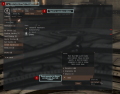 Search and add corp contact
 -
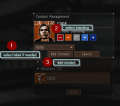 Select label and standing
 -
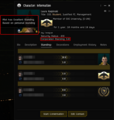 Capsuleer standings overview


Uses
The ability to categorize your interactions with people in EVE will not only make them easy to identify in the overview and chat but also make it possible to develop detailed dossiers of your interactions. To include what they do, where they go, and what habits they may have. How they enjoy playing EVE.
This information may seem harmless at first, but if a pilot becomes a war target or even a competitive trader in the same commodities you are in, this information becomes invaluable for determining when they are most vulnerable or exploiting their weaknesses.
All of these features can also be applied to player owned corporations. If you would like to focus on a particular corporation, I would suggest you create a label to place people into with the corporation name. The single notes tab is just not detailed enough to put all of the intel of corporate activities, would be best to place those kinds of notes under the people who are performing those activities within the corp.