
More actions
→How to Join Fleet-Up: Updated. |
m Rayanth moved page Fleet-Up to Archive:Fleet-Up without leaving a redirect: Archived |
||
| (19 intermediate revisions by 9 users not shown) | |||
| Line 1: | Line 1: | ||
Please note: as of October, 2019, Fleet-up has been shut down. | |||
'''[http://fleet-up.com/ Fleet-Up]''' | {{Historical}} | ||
'''[http://fleet-up.com/ Fleet-Up]''' was a third-party website that allows you to manage fittings, doctrines, pilots and fleets. It is accessible via ESI, making importing of fits into EVE easy. All E-UNI [[Campuses]], as well as the [[EVE University Incursion Community|Incursion community]], maintain doctrines on Fleet-Up. | |||
The direct link to the EVE University group on Fleet-Up is [http://eveuni.fleet-up.com/ http://eveuni.fleet-up.com/] | The direct link to the EVE University group on Fleet-Up is [http://eveuni.fleet-up.com/ http://eveuni.fleet-up.com/]. | ||
==How to Join Fleet-Up== | |||
* Navigate to [http://fleet-up.com fleet-up.com] | |||
* Click "LOG IN with EVE Online" to use the Single Sign On (SSO) authentication from EVE Online | |||
<br /> | |||
:[[File:EVE_SSO.png]] | |||
<br /> | |||
* Log into the EVE Online account that has your EVE University character | |||
* Click "Authorize" when prompted, after ensuring you've selected the character from the drop-down that is a member of EVE University | |||
* After you are redirected to Fleet-Up, click "Add Characters (optional)" from the top navigation | |||
* Review the data that you wish to share with Fleet-Up | |||
<br /> | |||
:[[File:Fleet_Up_Review_Permissions.png]] | |||
:'''Note:''' The required options enable Fleet-Up to determine what fittings you can fly | |||
<br /> | |||
* You will be redirected to the SSO process to confirm the access levels you wish to grant to Fleet-Up | |||
* Again, ensure you select the character from the drop-down that is a member of EVE University and click "Authorize" when prompted | |||
<br /> | |||
:'''Note:''' If you are redirected to the "Single Sign ON - Success" on Fleet-Up, you may have already authorized your public skills permissions on Fleet-Up. | |||
<br /> | |||
* Click "Join or Create a Group" from the top navigation | |||
* Click "Auto-Find Groups" | |||
<br /> | |||
:[[File:Fleet_Up_Auto_Find.png]] | |||
<br /> | |||
* Click "Join" next to "EVE University" with the Owner "Azmodeus Valar" from the search results | |||
<br /> | |||
:[[File:Fleet_Up_EVE_University_Group.png]] | |||
:'''Note:''' Manual applications to join the EVE University group will be rejected | |||
<br /> | |||
* Click "Ok" from the "Join Corp Group" window informing you that your request has been automatically processed as a member of EVE University | |||
* Click "Close" on the "Search for Corp Groups" window | |||
* You now have access to the fittings and doctrines from EVE University | |||
===Troubleshooting=== | ===Troubleshooting=== | ||
The most likely issue is not setting up the API properly before you try to join the EVE University group. | The most likely issue is not setting up the API properly before you try to join the EVE University group. | ||
| Line 18: | Line 43: | ||
*If you have joined EVE University very recently, or joined Fleet-Up only just now, the cache used by the ESI API may not yet have refreshed to reflect this change, so wait a few hours. | *If you have joined EVE University very recently, or joined Fleet-Up only just now, the cache used by the ESI API may not yet have refreshed to reflect this change, so wait a few hours. | ||
*If you are having issues, ask a [[Campuses|campus]] officer (or ask in E-UNI channels) for assistance. | *If you are having issues, ask a [[Campuses|campus]] officer (or ask in E-UNI channels) for assistance. | ||
*If you are ''still'' having issues, contact Kaein Soturus | *If you are ''still'' having issues, contact Kaein Soturus or Azmodeus Valar . | ||
*If you are a frequent guest FC and would like access without an API you should contact the [[Management#Director_of_Special_Projects|Director of Special Projects]]. | *If you are a frequent guest FC and would like access without an API you should contact the [[Management#Director_of_Special_Projects|Director of Special Projects]]. | ||
| Line 28: | Line 53: | ||
[[File:fleet-up_fittings.png]] | [[File:fleet-up_fittings.png]] | ||
=How to Find Doctrines= | =How to Find Doctrines= | ||
| Line 37: | Line 61: | ||
Once you select a doctrine you can | Once you select a doctrine you can | ||
* click on the show flyable link | * click on the "show flyable" link | ||
* select your character | * select your character | ||
and it will display which ships you can fly: | and it will display which ships you can fly: | ||
[[File:fleet-up_doctrines_showflyable.png| | [[File:fleet-up_doctrines_showflyable.png|887px]] | ||
[[File:fleet-up_doctrines_flyable.png|thumb|left]] | [[File:fleet-up_doctrines_flyable.png|thumb|400px|left]] | ||
* Green indicates all skills met | * Green indicates all skills met | ||
* Yellow indicates you can fly the hull but not use all modules | * Yellow indicates you can fly the hull but not use all modules | ||
Latest revision as of 06:01, 7 October 2021
Please note: as of October, 2019, Fleet-up has been shut down.

Fleet-Up was a third-party website that allows you to manage fittings, doctrines, pilots and fleets. It is accessible via ESI, making importing of fits into EVE easy. All E-UNI Campuses, as well as the Incursion community, maintain doctrines on Fleet-Up.
The direct link to the EVE University group on Fleet-Up is http://eveuni.fleet-up.com/.
How to Join Fleet-Up
- Navigate to fleet-up.com
- Click "LOG IN with EVE Online" to use the Single Sign On (SSO) authentication from EVE Online

- Log into the EVE Online account that has your EVE University character
- Click "Authorize" when prompted, after ensuring you've selected the character from the drop-down that is a member of EVE University
- After you are redirected to Fleet-Up, click "Add Characters (optional)" from the top navigation
- Review the data that you wish to share with Fleet-Up
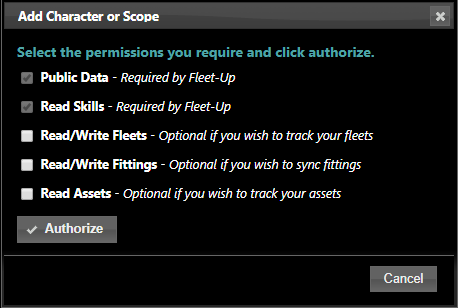
- Note: The required options enable Fleet-Up to determine what fittings you can fly

- You will be redirected to the SSO process to confirm the access levels you wish to grant to Fleet-Up
- Again, ensure you select the character from the drop-down that is a member of EVE University and click "Authorize" when prompted
- Note: If you are redirected to the "Single Sign ON - Success" on Fleet-Up, you may have already authorized your public skills permissions on Fleet-Up.
- Click "Join or Create a Group" from the top navigation
- Click "Auto-Find Groups"

- Click "Join" next to "EVE University" with the Owner "Azmodeus Valar" from the search results

- Note: Manual applications to join the EVE University group will be rejected

- Click "Ok" from the "Join Corp Group" window informing you that your request has been automatically processed as a member of EVE University
- Click "Close" on the "Search for Corp Groups" window
- You now have access to the fittings and doctrines from EVE University
Troubleshooting
The most likely issue is not setting up the API properly before you try to join the EVE University group.
- If you have joined EVE University very recently, or joined Fleet-Up only just now, the cache used by the ESI API may not yet have refreshed to reflect this change, so wait a few hours.
- If you are having issues, ask a campus officer (or ask in E-UNI channels) for assistance.
- If you are still having issues, contact Kaein Soturus or Azmodeus Valar .
- If you are a frequent guest FC and would like access without an API you should contact the Director of Special Projects.
How to Find Fits
Once you are logged in with an E-UNI character:
- Click on Fittings - click on EVE University Fittings
Here you can either click on each hull type, or use the search field to narrow your search.

How to Find Doctrines
Once you are logged in with an E-UNI character:
- Click on Doctrines - click on EVE University Doctrines
A list of doctrines will appear, select the doctrine you wish to view.
Once you select a doctrine you can
- click on the "show flyable" link
- select your character
and it will display which ships you can fly:


- Green indicates all skills met
- Yellow indicates you can fly the hull but not use all modules
- Red indicates you cannot fly the hull