
Created page with "This article is a basic guide on how to get started recording your EVE University classes using Open Broadcasting Software, commonly known as OBS. More comprehensive guides on..." |
No edit summary |
||
| (3 intermediate revisions by 2 users not shown) | |||
| Line 1: | Line 1: | ||
This article is a basic guide on how to get started recording your EVE University classes using Open Broadcasting Software, commonly known as OBS. More comprehensive guides on how to utilize the tools mentioned within this guide are widely available across the internet and there are a multitude of different tools that could be used instead of the ones suggested here. | This article is a basic guide on how to get started streaming and recording your EVE University classes, fleets and gameplay using Open Broadcasting Software, commonly known as OBS. More comprehensive guides on how to utilize the tools mentioned within this guide are widely available across the internet and there are a multitude of different tools that could be used instead of the ones suggested here. | ||
If you are planning to become a longer-term teacher or recorder of classes classes or other content related to EVE University and its mission, please discuss this with the respective Managers i.e. [[Communications_Department|Communications]], [[Teaching_Department|Teaching]], etc. | If you are planning to become a longer-term teacher or recorder of classes classes or other content related to EVE University and its mission, please discuss this with the respective Managers i.e. [[Communications_Department|Communications]], [[Teaching_Department|Teaching]], etc. | ||
== Recording using OBS - A simple guide == | == Streaming via EVE University’s Twitch account == | ||
One of the most widely used tools for streaming is [https://obsproject.com/ Open Broadcaster Software - OBS]. It doubles up very well as a tool for recording on top of that, which makes it a powerful asset for anyone looking to stream EVE, classes, record them, or both. While a lot of the settings are somewhat self-explanatory, it can be challenging to get started. The following guide provides you with some basic advice on how to set up for a recording via OBS. | To stream via the EVE University’s Twitch accounts, you will require the EVE Uni’s Twitch Stream Key. The key will be made available to you via the [[EVE_University_Management|CEO of EVE University]] and will regularly be reset to avoid any complications. | ||
== Recording or streaming using OBS - A simple guide == | |||
One of the most widely used tools for streaming is [https://obsproject.com/ Open Broadcaster Software - OBS]. It doubles up very well as a tool for recording on top of that, which makes it a powerful asset for anyone looking to stream EVE, classes, record them, or both. While a lot of the settings are somewhat self-explanatory, it can be challenging to get started. The following guide provides you with some basic advice on how to set up for a recording and/or streaming via OBS. | |||
=== Scenes === | === Scenes === | ||
[[File:OBS scenes simple.png|thumb|Example of several basic scenes in OBS]] | [[File:OBS scenes simple.png|thumb|Example of several basic scenes in OBS]] | ||
One of the strengths of recording via OBS is that you can set up multiple scenes. Imagine these as virtual screens which you can easily switch in between. Some basic scenes for the purposes of recording a class could be: | One of the strengths of recording via OBS is that you can set up multiple scenes. Imagine these as virtual screens which you can easily switch in between. Some basic scenes for the purposes of streaming or recording a class could be: | ||
* Introduction screen - A scene you will show before starting the actual class/content to provide the viewers with some basic context on what’s to come - think of it as an introductory splash screen. | * Introduction screen - A scene you will show before starting the actual class/content to provide the viewers with some basic context on what’s to come - think of it as an introductory splash screen. | ||
* Slides - The most important part of each lecture-style class from e.g. the CORE classes - the slide deck that you will use to explain your topic. | * Slides - The most important part of each lecture-style class from e.g. the CORE classes - the slide deck that you will use to explain your topic. | ||
* EVE Client - in case you want to show anything in-game, share your EVE client as a separate scene. | * EVE Client - in case you want to show anything in-game, share your EVE client as a separate scene. | ||
* Outro screen - when finishing up your recording, you could provide a graphic thanking the viewers and provide any relevant info e.g. EVE Uni logo, Partner logo, invitation to join future classes, relevant resources. | * Outro screen - when finishing up your recording, you could provide a graphic thanking the viewers and provide any relevant info e.g. EVE Uni logo, Partner logo, invitation to join future classes, relevant resources, etc. | ||
[[File:OBS - Hotkeys.png|thumb|left|Set up Hotkeys to switch between scenes.]] | [[File:OBS - Hotkeys.png|thumb|left|Set up Hotkeys to switch between scenes.]] | ||
| Line 20: | Line 23: | ||
{{Clear}} | {{Clear}} | ||
Some ideas for additional scenes: | |||
* Be right back scene - if you need to take a break while streaming and want to let your viewers know that you will be right back. | |||
* Browser/Desktop scene - great for showing UniWiki pages or other content on a dedicated desktop screen. These scenes pose the highest risk of accidentally showing parts of your computer you do not mean to share with the recording. It is therefore only recommended to use browser or full desktop scenes if you are well aware of how to avoid infringing on your own privacy. | * Browser/Desktop scene - great for showing UniWiki pages or other content on a dedicated desktop screen. These scenes pose the highest risk of accidentally showing parts of your computer you do not mean to share with the recording. It is therefore only recommended to use browser or full desktop scenes if you are well aware of how to avoid infringing on your own privacy. | ||
| Line 50: | Line 54: | ||
If you are planning to play music e.g. as background music during your Intro, make sure the music is copyright-free and DMCA safe. There are plenty of free resources around the internet (or on your favourite music platforms like Spotify) providing you with such music. | If you are planning to play music e.g. as background music during your Intro, make sure the music is copyright-free and DMCA safe. There are plenty of free resources around the internet (or on your favourite music platforms like Spotify) providing you with such music. | ||
In case you are having issues with a lot of background noise, OBS allows you to use in-built ''Filters'' to add noise-suppression to make your voice clearer. | In case you are having issues with a lot of background noise, OBS allows you to use in-built ''Filters'' to add noise-suppression to make your voice clearer. Furthermore, when capturing a Discord client - for example, when you wish to capture audience questions or are recording a guest lecture or talk - it is possible to temporarily mute Discord's notification sounds (pings, DMs, user joining/leaving, push-to-talk activation, etc.) by heading to your Discord settings, the Notifications tab, and scrolling down to the Sounds section. The catch-all "Disable All Notification Sounds" setting allows you to turn off these notification sounds for as long as needed for your recording. | ||
[[File:Audio filter noiseSuppression.png|thumb|left|Example of Noise Suppression filters applied to microphone.]] | [[File:Audio filter noiseSuppression.png|thumb|left|Example of Noise Suppression filters applied to microphone.]] | ||
{{Clear}} | {{Clear}} | ||
=== Camera === | |||
[[File:Twitch Guide - video camera.png|thumb|200px|Who is this?]] | |||
While totally optional, adding a camera aka. adding a face to the name, can increase engagement significantly. It allows viewers to feel like they are actually interacting with the content creator, by seeing their reactions and being able to "look them in the eyes"<br> | |||
See how you are wondering who this person on the left is? <br> | |||
Hint: It's a screen grab from someone an official Twitch streaming guide. | |||
OBS makes it very easy to pick up any camera device. | |||
Simply add a '''Video Capture Device''' as a source and select your webcam. | |||
If you are using your webcam microphone, add it individually as an '''Audio Input Device.''' | |||
Tip: Add your camera in either the bottom left of bottom right of your screen as an extension to your regular content. Make sure the camera does not overlap with important content. If you use a slide-deck, make sure you adapt it before you stream to ensure none of the content overlaps with your camera. | |||
== Streaming and recording resources == | == Streaming and recording resources == | ||
| Line 95: | Line 114: | ||
</gallery> | </gallery> | ||
[[Category:EVE University]] | <!--[[Category:EVE University]] | ||
[[Category:Guides]] | [[Category:Guides]]--> | ||
Latest revision as of 15:01, 4 October 2024
This article is a basic guide on how to get started streaming and recording your EVE University classes, fleets and gameplay using Open Broadcasting Software, commonly known as OBS. More comprehensive guides on how to utilize the tools mentioned within this guide are widely available across the internet and there are a multitude of different tools that could be used instead of the ones suggested here.
If you are planning to become a longer-term teacher or recorder of classes classes or other content related to EVE University and its mission, please discuss this with the respective Managers i.e. Communications, Teaching, etc.
Streaming via EVE University’s Twitch account
To stream via the EVE University’s Twitch accounts, you will require the EVE Uni’s Twitch Stream Key. The key will be made available to you via the CEO of EVE University and will regularly be reset to avoid any complications.
Recording or streaming using OBS - A simple guide
One of the most widely used tools for streaming is Open Broadcaster Software - OBS. It doubles up very well as a tool for recording on top of that, which makes it a powerful asset for anyone looking to stream EVE, classes, record them, or both. While a lot of the settings are somewhat self-explanatory, it can be challenging to get started. The following guide provides you with some basic advice on how to set up for a recording and/or streaming via OBS.
Scenes

One of the strengths of recording via OBS is that you can set up multiple scenes. Imagine these as virtual screens which you can easily switch in between. Some basic scenes for the purposes of streaming or recording a class could be:
- Introduction screen - A scene you will show before starting the actual class/content to provide the viewers with some basic context on what’s to come - think of it as an introductory splash screen.
- Slides - The most important part of each lecture-style class from e.g. the CORE classes - the slide deck that you will use to explain your topic.
- EVE Client - in case you want to show anything in-game, share your EVE client as a separate scene.
- Outro screen - when finishing up your recording, you could provide a graphic thanking the viewers and provide any relevant info e.g. EVE Uni logo, Partner logo, invitation to join future classes, relevant resources, etc.

It is easy to assign hotkeys to each scene to make for a smoother transition between the scenes. This comes in particularly handy when switching between slides and the EVE client.
Some ideas for additional scenes:
- Be right back scene - if you need to take a break while streaming and want to let your viewers know that you will be right back.
- Browser/Desktop scene - great for showing UniWiki pages or other content on a dedicated desktop screen. These scenes pose the highest risk of accidentally showing parts of your computer you do not mean to share with the recording. It is therefore only recommended to use browser or full desktop scenes if you are well aware of how to avoid infringing on your own privacy.
Adding elements/sources to scenes

Each scene consists of one or more sources which have to be added to capture what you want.
The following is an overview of some recommended sources for each of the abovementioned scenes:
- Introduction screen - Recording overlay (png image), EVE Uni Logo (png image), Partner logo (png image), class title (text), information about the teacher e.g. ingame avatar and name (image and text).
- Alternatively, you can add a single introduction graphic that is more limited in scope but lets you avoid having to add individual sources.
- Slides - Recording overlay (png image), slides (Window capture - select your PDF or PPT).
- EVE Client - Game Client (Game Capture - select your EVE client).
- Outro screen - Recording overlay (png image), EVE Uni Logo (png image), Partner logo (png image).
Note that the sources at the top of the list will be in the front of your display and sources in the bottom of the list in the background. This is useful to know when laying out your scene.
To enhance branding and allow you to individualize your scenes, you can add different elements to each scene. We are providing you with some basic elements at the bottom of this guide, for both streaming and recording purposes.
You can move elements around by simple drag-and-drop and increase/decrease their size by dragging individual corners/sides. Use Alt + drag to crop your sources.
Audio

OBS makes it easy to pick up (or mute) both your microphone as well as your Desktop audio.
It is recommended that your microphone audio is within the Yellow part of the audio metre. Use the settings to adjust the input volume if it is too high/low.
If you are planning to play music e.g. as background music during your Intro, make sure the music is copyright-free and DMCA safe. There are plenty of free resources around the internet (or on your favourite music platforms like Spotify) providing you with such music.
In case you are having issues with a lot of background noise, OBS allows you to use in-built Filters to add noise-suppression to make your voice clearer. Furthermore, when capturing a Discord client - for example, when you wish to capture audience questions or are recording a guest lecture or talk - it is possible to temporarily mute Discord's notification sounds (pings, DMs, user joining/leaving, push-to-talk activation, etc.) by heading to your Discord settings, the Notifications tab, and scrolling down to the Sounds section. The catch-all "Disable All Notification Sounds" setting allows you to turn off these notification sounds for as long as needed for your recording.

Camera

While totally optional, adding a camera aka. adding a face to the name, can increase engagement significantly. It allows viewers to feel like they are actually interacting with the content creator, by seeing their reactions and being able to "look them in the eyes"
See how you are wondering who this person on the left is?
Hint: It's a screen grab from someone an official Twitch streaming guide.
OBS makes it very easy to pick up any camera device.
Simply add a Video Capture Device as a source and select your webcam.
If you are using your webcam microphone, add it individually as an Audio Input Device.
Tip: Add your camera in either the bottom left of bottom right of your screen as an extension to your regular content. Make sure the camera does not overlap with important content. If you use a slide-deck, make sure you adapt it before you stream to ensure none of the content overlaps with your camera.
Streaming and recording resources
EVE University streaming and recording graphics
For Logos and other EVE University related graphics, please consult the EVE Uni Graphics library.
EVE University text and color style guide
The main font used by Eve Uni is called Ethnocentric, while the main color Dark Tangerine has a hex value of #FDB515 and an RGB value of 253 /181 / 21. More information can be found in the EVE University style guide.
Plug-and-Play Frames
-
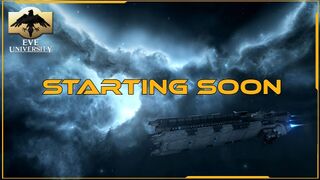 Twitch Slide Starting Soon.jpg Intro slide before the stream starts
 -
 Twitch Slide welcome.jpg Slide when the stream or recording starts
 -
 Twitch Slide stand by.jpg Slide when setting things up
 -
 Twitch Slide short break.jpg Slide for breaks during streaming
 -
 Twitch Slide thanks.jpg Slide for the end of the stream or recording


Single Objects
-
 Obs frame-empty.png OBS empty frame
 -
 Obs frame v2.png OBS empty frame with space for avatar or logo
 -
 OBS Frame Ticker Box.png OBS empty frame with space for avatar or logo plus ticker box
 -
 E-UNI.png EVE-Uni logo
 -
 EVE University Logo.gif EVE-Uni spinning logo
 -
 Twitch Slide clean background.jpg Background clean
 -
 Twitch Slide frame and logo.jpg Background with frame and logo
 -
 Twitch Slide frame.jpg Background with just frame
 -
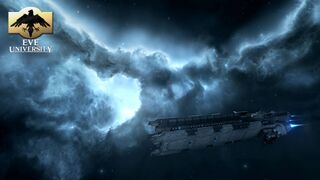 Twitch Slide logo.jpg Background with just logo


EVE Partner Program graphics
 Note: Note:
|
The Partner Program graphics are only to be used when you stream on behalf of EVE University. |
-
 EventsCover 800x450 Partner.jpg 800x450 Partner JPG
 -
 Image 445x500 Partner.jpg 800x450 Partner JPG
 -
 SpecialAnnouncement 616x258 Partner.jpg 616x258 Partner JPG
 -
 PartnerBadge.png Partner Badge horizontal transparent
 -
 PartnerBadge2.png Partner Badge horizontal transparent


