
More actions
Added update tag. |
Removed some very out of date info. |
||
| Line 1: | Line 1: | ||
{{update|Images should be updated to reflect new UI.}} | {{update|Images should be updated to reflect new UI.}} | ||
==Optimizing Graphics Settings== | ==Optimizing Graphics Settings== | ||
“Reset graphic settings” will put display options back to their default values. | “Reset graphic settings” will put display options back to their default values. | ||
| Line 11: | Line 6: | ||
===Shadow quality=== | ===Shadow quality=== | ||
This setting activates model shadows in game. Options available are: “Off”, “Normal”, “High” and “Extreme”. Shadows add a lot of strain on your graphic card and it is not recommended to activate that option on low to average performance computers. | This setting activates model shadows in game. Options available are: “Off”, “Normal”, “High” and “Extreme”. Shadows add a lot of strain on your graphic card and it is not recommended to activate that option on low to average performance computers. | ||
==Optimizing the EVE Online Client== | ==Optimizing the EVE Online Client== | ||
| Line 47: | Line 36: | ||
Press apply and all brackets in space should be removed. | Press apply and all brackets in space should be removed. | ||
==Brackets== | ==Brackets== | ||
Revision as of 19:01, 9 June 2017
Reason: Images should be updated to reflect new UI.
Optimizing Graphics Settings
“Reset graphic settings” will put display options back to their default values.
Shadow quality
This setting activates model shadows in game. Options available are: “Off”, “Normal”, “High” and “Extreme”. Shadows add a lot of strain on your graphic card and it is not recommended to activate that option on low to average performance computers.
Optimizing the EVE Online Client
How to optimize your client for large scale combat and similar activities in EVE Online.
Large scale conflicts in EVE Online can involve hundreds of pilots on either side. Performance can be reduced under such stressed or loaded circumstances, so here are a few tips and tricks to optimize your client for such events.
Overview & Bracket Settings
You can access the overview and bracket settings by right clicking on the small white arrow next to the overview bar on your overview while in space.
In the Filters tab, go to the Types tab and press Deselect All.

Right click on the small arrow in your overview bar and select Save Type Selection As…
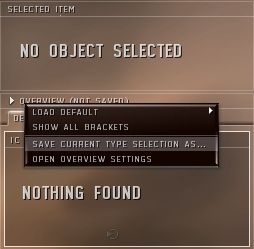 ]
]

...and save it under an easily identifiable name as pictured below.

Go to the Overview Tabs tab in the overview settings. In the Overview Profile column, select your new settings from there. In the Bracket Profile column, select your new settings again.


Press apply and all brackets in space should be removed.
Brackets
Source http://support.eve-online.com/Pages/KB/Article.aspx?id=472
Brackets
Brackets are the icons you see in space for an item, such as the squares seen for other players, circles for planets, crosses for drones / NPC’s.
Using overview presets, you can customize what you see in space. By removing certain items it is possible, as an example, to remove drones, cargo containers, wrecks, biomass from space, so that in large battles you are able to see the situation more clearly, and with perhaps a higher frame rate. In the same way, you can set it so you only see the brackets for hostile ships. As with the overview, it is fully customizable. You can implement these by creating additional presets for your desired bracket settings, and implement them on your tabs using the overview tabs section of the overview settings.
Ship information
When you see a ship in space, by clicking on it or moving your mouse over it, additional information is shown. By default, the following information is shown:
- Pilot name[Corp ticker]
This can however be modified to your preference, using the ships section of the overview tab. In here you can modify which information is shown, what sort of brackets are used around the information (if any). By checking the ‘hide corp ticker if pilot is in alliance’ checkbox, only the alliance ticker will show for players that are in an alliance and not the corporation ticker.
For example, by checking ship type and moving it up to the top, then modifying the brackets to ‘[‘ and ‘]’, will result in ships in space being shown as such:
- [Ship type] Pilot name [Corp Ticker]

So, in the following you can see that the selected ship is an Apocalypse flown by GM Krymus of the GMS corporation in the CCP alliance:
- [Apocalypse] GM Krymus [GMS]
Original courtesy of A Mule in EVE