
|
| Triglavian links |
 Triglavian Collective Triglavian Collective |
|---|
| Triglavian collective |
| Past operations |
Quick guide on how to setup Overview for Abyss. It is not definitive way - rather a proposal from EVE University Abyssals runners, that found it good for it's purpose.
Prerequisites
It's assumed that you have UNI Overview installed, as all instructions explain modification to it, not creating new setup. Your overview should look mroe or less like on below screenshot.

Creating new tab
Click the "+" button on the right of your tabs - you will get window prompting you to enter name of new tab, and asking you to pick Filter and Bracket Filter.
For Filter: General: All
For Brackets: Brackets: Combat/Targets/Friendly (+Dro)

Columns adjustment
Select your new tab, Right Click on column header and uncheck Corporation and Alliance.

Optional: drone removal
Some players prefer to remove drones from the Overview. To do this, in safe place launch your drones, Right Click one of them in Overview, and select "Remove Combat Drone from Overview"

Saving filter
If you modified your filter in previous step, you need to save it. Go to Overview settings ("3 dots" on the top right), go to "Filters" tab and click "Save As". You will be prompted for a name for new filter.

Final check
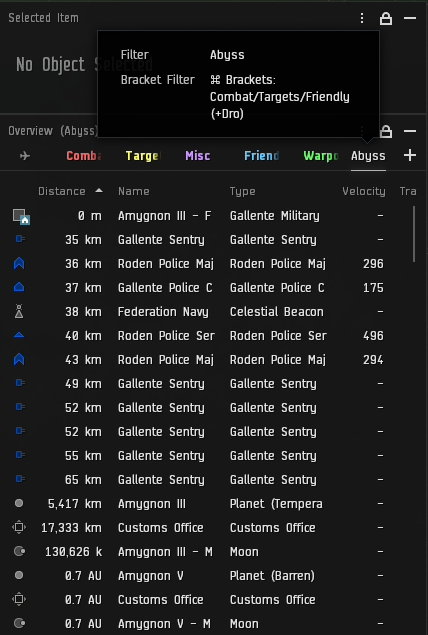
Hover your cursor over new tab name - you should see Filter and Bracket filter names, like below screenshot
Optional step - for running in Fleets
If you are running Abyss in fleet, coordination is important - you might want to switch "Tags" as a column in Overview. Right Click any of column headers, and check "Tag".

Overview in action
That's how your Overview will look in Abyss - it will contain everything that's important, including enemies, pylons and caches/loot.
