
More actions
Temporarily reverting link archiving of Buyback spreadsheet. |
Updated Due to other page being archvied |
||
| Line 1: | Line 1: | ||
= HQ Buyback Service = | = HQ Buyback Service = | ||
The Buyback program is simply a way to sell your loot easily without the hassle of having to haul it to a trade hub yourself. You can use this program if you want to liquify your own assets from missions, salvaging, exploration, PI (or any other way of acquiring stuff you can think of), instead of having to haul it all to market and sell it yourself. | The Buyback program is simply a way to sell your loot easily without the hassle of having to haul it to a trade hub yourself. You can use this program if you want to liquify your own assets from missions, salvaging, exploration, PI (or any other way of acquiring stuff you can think of), instead of having to haul it all to market and sell it yourself. | ||
== Current Mining Buyback Spreadsheet == | |||
Current Version April 2022 (v6) | |||
[https://drive.google.com/open?id=1uG86UeJF8I2c2-gxZ_RhTXkzs9z-67bLnLpJpE5FcHA Buyback Spreadsheet] | |||
== Mining Buyback Spreadsheet Instructions== | |||
=== Filling the spreadsheet for personal Buyback === | |||
==== Prepare the spreadsheet ==== | |||
# Go to the [[#Current Mining Buyback Spreadsheet|current version]]. (Note: This link will only take you to the "Latest Version" section on the page.) | |||
# Log into your Google account. | |||
# Open the file menu and select "Make a Copy". | |||
# Name it following this convention. For Personal use: "Your Name (DATE)" - e.g. Jefferson Spence (2014/11/18) | |||
==== Work on the spreadsheet ==== | |||
# Make sure the ore/ice/gas that you'd like to submit is stacked. | |||
# On the '''Paste Inventory''' tab, select cell A4, and copy and paste these from your in-game inventory.<br />The "Icons" view in your inventory will not work for this. You need to use the "Details" or "List" view. ("Icon" is the only view that works if you have a NON-US settings in your local. Since "Details" and "List" only seem to work for them who has US as local) | |||
<font color="red">'''IMPORTANT:''' Make sure to have default column settings and number of columns (7).</font> | |||
==== Submit the Buyback ==== | |||
:Follow the section [[#Submit the spreadsheet|Submit the spreadsheet]] below. | |||
---- | |||
=== Using the spreadsheet in a shared can mining operation === | |||
== | While running a mining op the participation of the fleet members needs to be tracked in the sheet. | ||
==== Before the operation ==== | |||
# Go to the [[#Latest Version|current version]]. (Note: This link will only take you to the "Latest Version" section on the page.) | |||
# Log into your Google account. | |||
# Open the file menu and select "Make a Copy". | |||
# Name it following this convention. For Shared Can use: "SHARED CAN - FC-Name (DATE)" - e.g. SHARED CAN - Jefferson Spence (2014/11/18) | |||
# Go to the top right of the spreadsheet and click on the "Share" button to open sharing settings. Change it from private to "Anyone with the link can view". | |||
# Make sure haulers know what station you want the ore delivered to, and who to contract the ore to after the op. | |||
==== During the operation ==== | |||
# Keep up with filling in the participation sheet with the start and stop times for each participant. | |||
# Per Uni policy everyone involved in the op should be 1.00 shared weight no matter their role unless they voluntarily agree to less. | |||
==== After the operation ==== | |||
# At the end of the operation have all ore contracted to the Fleet Commander (or whoever will be submitting the buyback contract). | |||
# Make sure all the ore/ice/gas mined during the Shared Can is stacked. | |||
# On the '''Paste Inventory''' tab, select cell A4, and copy and paste these from the in-game inventory.<br />The "Icons" view in your inventory will not work for this. You need to use the "Details" or "List" view. | |||
# Add any additional raw ISK to the '''ExtraISK''' tab if you had sold any salvage or modules from rats, received a cash donation, or had to pay an external freighter such as Red Frog Freight. | |||
# Double check that all the participation information is correct and make sure to thank all those who participated in the op. | |||
==== Submit the Buyback ==== | |||
:Follow the section [[#Submit the spreadsheet|Submit the spreadsheet]] below. | |||
==== After the Buyback is completed ==== | |||
# As soon as the Buyback is completed and paid out, you need to pay the fleet members. | |||
# Open your spreadsheet again and go to the '''Participation''' tab. | |||
# Start to transfer the values in the "Payout (ISK)" column to the fleet members, and mark them accordingly in the "Paid?" column. | |||
# It is recommended to send out an EVE Mail to the fleet members as soon as you've done all the after work, including the payout. | |||
---- | |||
=== Submit the spreadsheet === | |||
Before you submit the Buyback you'll need to fix the current market prices into the spreadsheet, so that they won't be updated anymore. This is done in the second step below: | |||
# Change to the '''Inventory''' tab. | |||
# Select "Finalize Buyback" in the Buyback Menu. (Because this step uses a script, Google docs security settings may ask you to authorize the script to run. Click the “Advanced” link on the pop up to enable the option to run the script, if this occurs). | |||
#: [[File:AMC_Buyback_123.jpg|200px|thumb|none|Finalize Buyback]] | |||
# Ensure the Buyback script has finalized prices. On the Inventory tab, the cells in Column F will contain a formula “=Market!Fx” if the Finalize Buyback script has not successfully run (as seen in the formula bar at the top when selecting a cell in column F) - run the script again. If the script has successfully completed, the formula bar will show a numeric value rather than a formula. | |||
#: [[File:AMC Buyback 42.jpg|1000px|thumb|none|Ensure the Buyback script has finalized prices]] | |||
# Share the spreadsheet (i.e. click the '''Share''' button in the upper right corner of the spreadsheet, then click "Change to anyone with the link", make sure the google doc isn't set to "restricted". Then click done). | |||
# Create a contract to <font color="white">'''Ivy League Buyback'''</font> with the applicable ore, ice and gas. | |||
# There is no 6. | |||
# Set the contract amount in the field "you will receive" to the amount shown in cell G1 of the '''Inventory''' sheet. | |||
# Paste the spreadsheet key in the '''Description''' field of the contract: | |||
#: (The field located between ""/d/*****/edit#"". See the image below.) | |||
#: [[File:AMC_Buyback_6.jpg|500px|thumb|none|Finding the spreadsheet key]] | |||
# Set the contract for 4 weeks expiration, then click finalize the contract. | |||
# Wait to get paid. | |||
==Reasons for your contract to be declined== | |||
* The prices were updated and no longer match between the contract and the spreadsheet. | |||
* The value and/or quantities do not match between the contract and the spreadsheet. | |||
* The contract was submitted outside of Stacmon/Slays Or PC9-AY and T22-QI without the approval of a Supply Officer. | |||
* The contract was not submitted from an NPC station or one of the <font color="white">'''Ivy League'''</font> structures. | |||
* The submission did not come via a Google Docs spreadsheet. | |||
* The buyback contains minerals (Spreadsheet does not support minerals). | |||
* The buyback contains Triglavian Ore (Spreadsheet currently does not support triglavian ores). | |||
== Slays - Moon Ore == | |||
Supported station: Slays - Dairek's Chateau | |||
== Stacmon - Ice/Ore/Gas == | == Stacmon - Ice/Ore/Gas == | ||
Supported station: Stacmon - Furirams Furnace | Supported station: Stacmon - Furirams Furnace | ||
== Stacmon - General Buyback == | == Stacmon - General Buyback == | ||
Revision as of 20:22, 7 June 2022
HQ Buyback Service
The Buyback program is simply a way to sell your loot easily without the hassle of having to haul it to a trade hub yourself. You can use this program if you want to liquify your own assets from missions, salvaging, exploration, PI (or any other way of acquiring stuff you can think of), instead of having to haul it all to market and sell it yourself.
Current Mining Buyback Spreadsheet
Current Version April 2022 (v6)
Mining Buyback Spreadsheet Instructions
Filling the spreadsheet for personal Buyback
Prepare the spreadsheet
- Go to the current version. (Note: This link will only take you to the "Latest Version" section on the page.)
- Log into your Google account.
- Open the file menu and select "Make a Copy".
- Name it following this convention. For Personal use: "Your Name (DATE)" - e.g. Jefferson Spence (2014/11/18)
Work on the spreadsheet
- Make sure the ore/ice/gas that you'd like to submit is stacked.
- On the Paste Inventory tab, select cell A4, and copy and paste these from your in-game inventory.
The "Icons" view in your inventory will not work for this. You need to use the "Details" or "List" view. ("Icon" is the only view that works if you have a NON-US settings in your local. Since "Details" and "List" only seem to work for them who has US as local)
IMPORTANT: Make sure to have default column settings and number of columns (7).
Submit the Buyback
- Follow the section Submit the spreadsheet below.
While running a mining op the participation of the fleet members needs to be tracked in the sheet.
Before the operation
- Go to the current version. (Note: This link will only take you to the "Latest Version" section on the page.)
- Log into your Google account.
- Open the file menu and select "Make a Copy".
- Name it following this convention. For Shared Can use: "SHARED CAN - FC-Name (DATE)" - e.g. SHARED CAN - Jefferson Spence (2014/11/18)
- Go to the top right of the spreadsheet and click on the "Share" button to open sharing settings. Change it from private to "Anyone with the link can view".
- Make sure haulers know what station you want the ore delivered to, and who to contract the ore to after the op.
During the operation
- Keep up with filling in the participation sheet with the start and stop times for each participant.
- Per Uni policy everyone involved in the op should be 1.00 shared weight no matter their role unless they voluntarily agree to less.
After the operation
- At the end of the operation have all ore contracted to the Fleet Commander (or whoever will be submitting the buyback contract).
- Make sure all the ore/ice/gas mined during the Shared Can is stacked.
- On the Paste Inventory tab, select cell A4, and copy and paste these from the in-game inventory.
The "Icons" view in your inventory will not work for this. You need to use the "Details" or "List" view. - Add any additional raw ISK to the ExtraISK tab if you had sold any salvage or modules from rats, received a cash donation, or had to pay an external freighter such as Red Frog Freight.
- Double check that all the participation information is correct and make sure to thank all those who participated in the op.
Submit the Buyback
- Follow the section Submit the spreadsheet below.
After the Buyback is completed
- As soon as the Buyback is completed and paid out, you need to pay the fleet members.
- Open your spreadsheet again and go to the Participation tab.
- Start to transfer the values in the "Payout (ISK)" column to the fleet members, and mark them accordingly in the "Paid?" column.
- It is recommended to send out an EVE Mail to the fleet members as soon as you've done all the after work, including the payout.
Submit the spreadsheet
Before you submit the Buyback you'll need to fix the current market prices into the spreadsheet, so that they won't be updated anymore. This is done in the second step below:
- Change to the Inventory tab.
- Select "Finalize Buyback" in the Buyback Menu. (Because this step uses a script, Google docs security settings may ask you to authorize the script to run. Click the “Advanced” link on the pop up to enable the option to run the script, if this occurs).
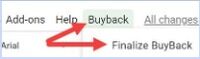
Finalize Buyback
- Ensure the Buyback script has finalized prices. On the Inventory tab, the cells in Column F will contain a formula “=Market!Fx” if the Finalize Buyback script has not successfully run (as seen in the formula bar at the top when selecting a cell in column F) - run the script again. If the script has successfully completed, the formula bar will show a numeric value rather than a formula.
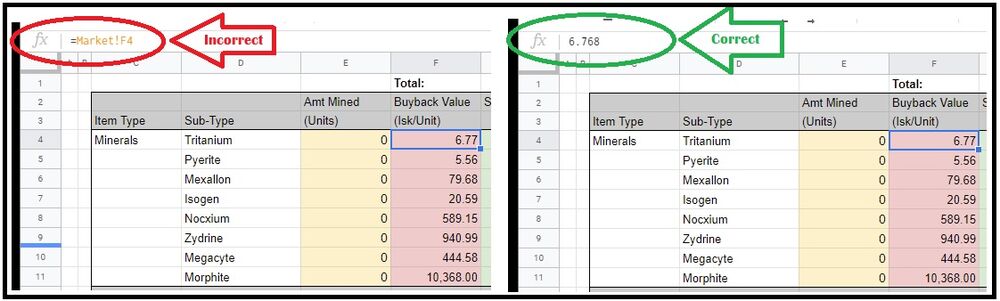
Ensure the Buyback script has finalized prices
- Share the spreadsheet (i.e. click the Share button in the upper right corner of the spreadsheet, then click "Change to anyone with the link", make sure the google doc isn't set to "restricted". Then click done).
- Create a contract to Ivy League Buyback with the applicable ore, ice and gas.
- There is no 6.
- Set the contract amount in the field "you will receive" to the amount shown in cell G1 of the Inventory sheet.
- Paste the spreadsheet key in the Description field of the contract:
- (The field located between ""/d/*****/edit#"". See the image below.)

Finding the spreadsheet key
- Set the contract for 4 weeks expiration, then click finalize the contract.
- Wait to get paid.


Reasons for your contract to be declined
- The prices were updated and no longer match between the contract and the spreadsheet.
- The value and/or quantities do not match between the contract and the spreadsheet.
- The contract was submitted outside of Stacmon/Slays Or PC9-AY and T22-QI without the approval of a Supply Officer.
- The contract was not submitted from an NPC station or one of the Ivy League structures.
- The submission did not come via a Google Docs spreadsheet.
- The buyback contains minerals (Spreadsheet does not support minerals).
- The buyback contains Triglavian Ore (Spreadsheet currently does not support triglavian ores).
Slays - Moon Ore
Supported station: Slays - Dairek's Chateau
Stacmon - Ice/Ore/Gas
Supported station: Stacmon - Furirams Furnace
Stacmon - General Buyback
Supported station: Stacmon - The Quad
Prepare your items

2. The items you want to contract need to be in your hangar (not in containers);
3. Make sure they are not damaged (Select All, rightclick them and select "Get Repair Quote" if available, then "Reapair All" if anything shows up as damaged)
4. Make sure everything is (re)packaged (Select all and rightclick them, select "! Repackage" if available)
5. Select all, rightclick the items and select "stack all".
Calculate the value
1. Select all the items you want to contract to HSC Buyback (press CTRL+A to select all if so desired)
2. Press CTRL+C to copy the list to your clipboard.
3. Open https://evepraisal.com/ and edit the settings to simplify processing your contract (that way you also dont have to calculate anything). Correct settings are "YES | 95 | 360h"


5. Click "Submit"
6. The value of your buyback will be on the bottom of the packe under Total Buy Value
Note: do not close evepraisal yet, as the url of this evepraisal will be needed later.
Create the actual contract
1. Once again, select all the items you want to contract to the Buyback Program.
2. Rightclick them and select "Create Contract"
3. For 'Contract Type' you want to select 'Item Exchange'
4. For 'availability' select 'Private', and for the name type Ivy League Buyback
5. Click the “Next” button

6. A list of items will appear, with an X by the ones you are about to put into the contract (adjust X's as needed)
7. Click the “Next” button

8. On the “I will pay” box make sure it’s set to 0.0; (this is a FREE service!)
9. On the “I will receive” box” make sure it’s set to 95% of the Jita Buy Price.
10. Set expiration to 4 weeks (don't worry, it will not take that long at all)
11. In the Description field, paste the evepraisal link.
12. Click the “Next” button;

Rules & Limitations
1. No damaged goods, all goods must be repackaged and stacked.
1.1 Keep in mind that used mining and frequency crystals are considered to be damaged, so they cannot be repackaged and are thereby not to be put into Buyback contracts (feel free to donate those via the Community donations cans).
2. Contract price should be set correctly.
2.1 If the price you have set is too high, we will reject the contract.
2.2 If the price is too low by less than a million and also less than 1% of the total contract value, we will accept it anyway, to save some time for all parties involved.
3. We reserve the right to reject event loot during the first weeks of the event. Sometimes, the initial market price is very high at the beginning and declines rapidly after a few days.
4. We reserve the right to reject large quantities of items with high value and low trade volume. Sometimes evepraisal gives very high prices for those that are the result of a small volume buy order in jita. If you want to dump lots of LP it is better to ask beforehand if we are willing to accept the items for the evepraisal price. This happens very rarely but we have to do this if we don't want to potentially lose billions of ISK.
| |||||||||||||||||||||||||||||||||||||||||||||||||||||